Assumptions tell the engine which rules apply, how dollars grow, and how to handle surplus or shortfalls. They work together with Income, Expenses, and accounts. After you change something, the projection recalculates.
Use Scenario region next to the title to align this page with the CA or US layouts you see in the product. Your real scenario still uses the country you set under Tax; this control is only for the tutorial preview. More regions will appear as the app supports them.
Step 1: Where to open assumptions on Overview
On Overview, use the second row under the main tabs (the same strip as Net Worth, Income chart mode, and the wallet for cashflows). From there you open Tax (scissors), Economic assumptions (flask), or Age & scenario (calendar). Only one header dropdown stays open at a time.

The next section shows each menu with figures and field notes. Use Scenario region next to the title so the Tax example matches CA or US; your live scenario still follows the country you set under Tax.
Step 2: What differs by region
Tax menu (by region)
The open Tax menu usually follows a layout like the one shown here. Exact order and visibility can shift slightly by marital status, plan, and release.
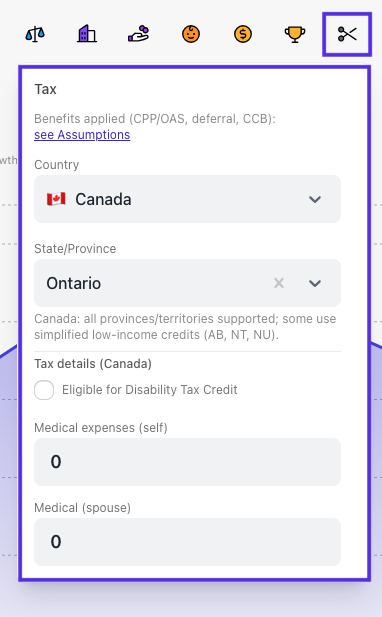
Example with Scenario region set to CA (example province: Ontario). Use see Assumptions when you need the flask menu in the same session.
- Use this menu for where you file and for scenario-level credit and deduction inputs that apply across the projection. It works together with detailed Income and Expenses from the wallet row, not instead of them.
- When you have selections set, a compact summary line can appear under the title (for example dependants, medical, tuition, DTC) so you can see what is active at a glance.
- Benefits applied (CPP/OAS, deferral, CCB): the see Assumptions control closes Tax and opens the flask menu. Use that when you need to align program defaults (deferral ages, benefit indexation, and similar) with the same scenario. The label still mentions common Canadian programs; your projection follows the rules for the country you selected.
- Country and State/Province: pick Canada and a province or territory. Changing country clears province so you choose a fresh jurisdiction. Helper text in the app notes that all provinces and territories are supported and that AB, NT, and NU use simplified low-income credit modeling.
- Married: Pension income splitting controls can appear here so you can set how eligible pension income is shared for tax. The same scenario may also show splitting under Economic assumptions; adjust where you prefer, and keep both in sync with your intent.
- Tax details (Canada): Eligible for Disability Tax Credit, medical expenses for self, spouse, and dependants, plus tuition amounts and tuition carryforward. Amounts are in scenario currency; changes are saved to the scenario and the engine recalculates (often after a short debounce).
- Scroll the panel on smaller screens; the menu is scrollable when content exceeds the viewport.
Age & scenario menu
Set who is in the household, ages, and how long the projection runs. This feeds taxes, benefits, and chart horizons together with Income and other assumptions.
- Marital status drives whether you see spouse rows, joint tax treatment elsewhere, and related household fields. Switching to Married can default spouse age and end of scenario from your values when they were empty.
- When you are not Married, Plan to marry at (age) is optional. If you set it, the menu adds Spouse age at marriage and Spouse end of scenario so the projection can model the transition.
- Current age anchors the timeline (often shown with month precision and a calendar month). End of scenario sets how far the projection runs; pickers can tie to milestones when you use them in the scenario.
- End of scenario is my life expectancy records intent in the scenario data. When you are Married, you also get Spouse end of scenario is spouse's life expectancy.
- For Married today, you edit Spouse current age and Spouse end of scenario directly instead of the marriage-plan block.
- Saves run through the same scenario update path as other header menus, then the engine refreshes the projection. The panel scrolls when content is taller than the viewport.
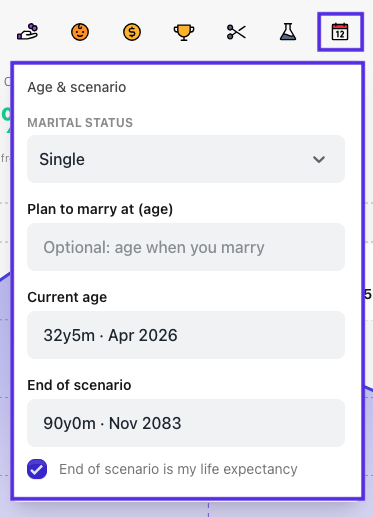
Example with Marital status Single and the default End of scenario is my life expectancy option on. Extra spouse rows appear when you are Married or set a marriage plan.
Economic assumptions menu
The panel is long, so scroll for benefits and programs, surplus / deficit, and other blocks at the bottom. Many rows offer a ? tooltip and a gear for advanced modes when a single flat rate is not enough.
- Inflation rate (with optional advanced year-by-year configuration) affects expenses, "match inflation" growth, and long-term bracket indexation (scaled by your indexation factor).
- Investment growth rate (with optional advanced curves) is the default nominal portfolio return for surplus cash and other defaults unless an account overrides it.
- Retirement age is a planning default and chart milestone; it does not automatically change each employment end date in Income. See add and update income for that workflow.
- Household and indexation: survivor expense ratio when you have a spouse or marriage plan, and indexation factor for how fast brackets move with inflation (paid plans).
- Volatility defaults for scenario-wide income and expense variation (paid plans); item-level settings can override.
- Benefits and programs the app applies (labels depend on your scenario): review that section for registered education plans, benefit deferral, or other program inputs when they appear.
- Surplus / deficit strategy (drawdown order, where extra cash goes) appears lower in the same menu when your plan includes it.
- Pension income splitting for married scenarios when your tax country is CA.
- HBP and LLP (Home Buyers' Plan / Lifelong Learning Plan) balances and repayment timing (paid plans).
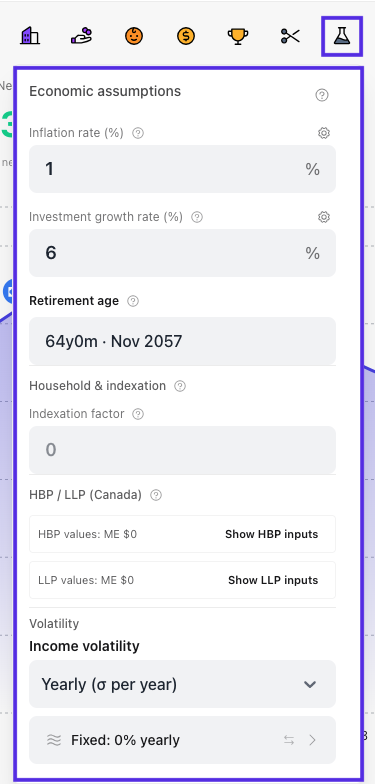
Example of the upper portion of the menu. Lower sections depend on your plan, tax country, and marital status.
Step 3: Plans and locks
Some blocks are labeled or behave as Starter vs paid: household and indexation, volatility, HBP/LLP, and similar sections may be read-only or hidden until you upgrade. The live UI shows the current gate.
Related
- Add and update income for employment timing vs retirement age in assumptions
- Create your first scenario in a minute for the first-time path
Questions? Use Help in the app or visit the Help Center.